Paste one link into a Web Browser input and the
translation is part of your programme output. Nothing to install, and
the vMix machine does not have to be the one running the session.
The sermon's sound reaching the computer that runs Livefy, from the mixing board or a microphone. How to connect it
1
Copy the Overlay link
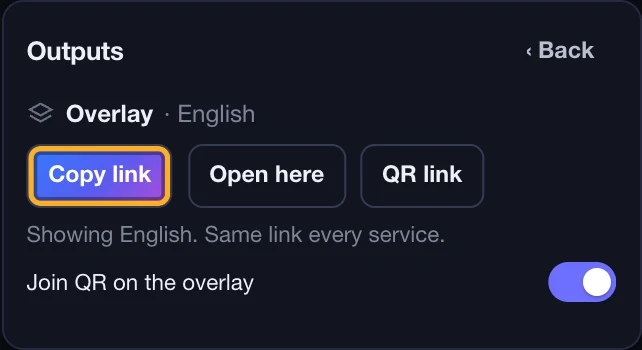
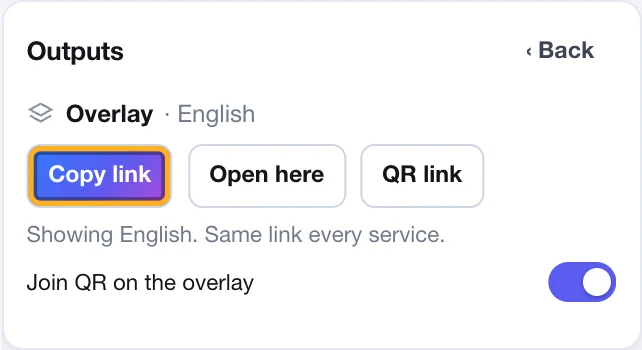
On the Live page, open Outputs, choose Overlay and press Copy link.
You do not need to be live yet. It is the same link every service. It paints no background and never shows a message, and it carries your church's screen token, so it works from any computer on any network. The same link is on the Phones & screens page under "A video mixer or stream".
2
Add a Web Browser input in vMix
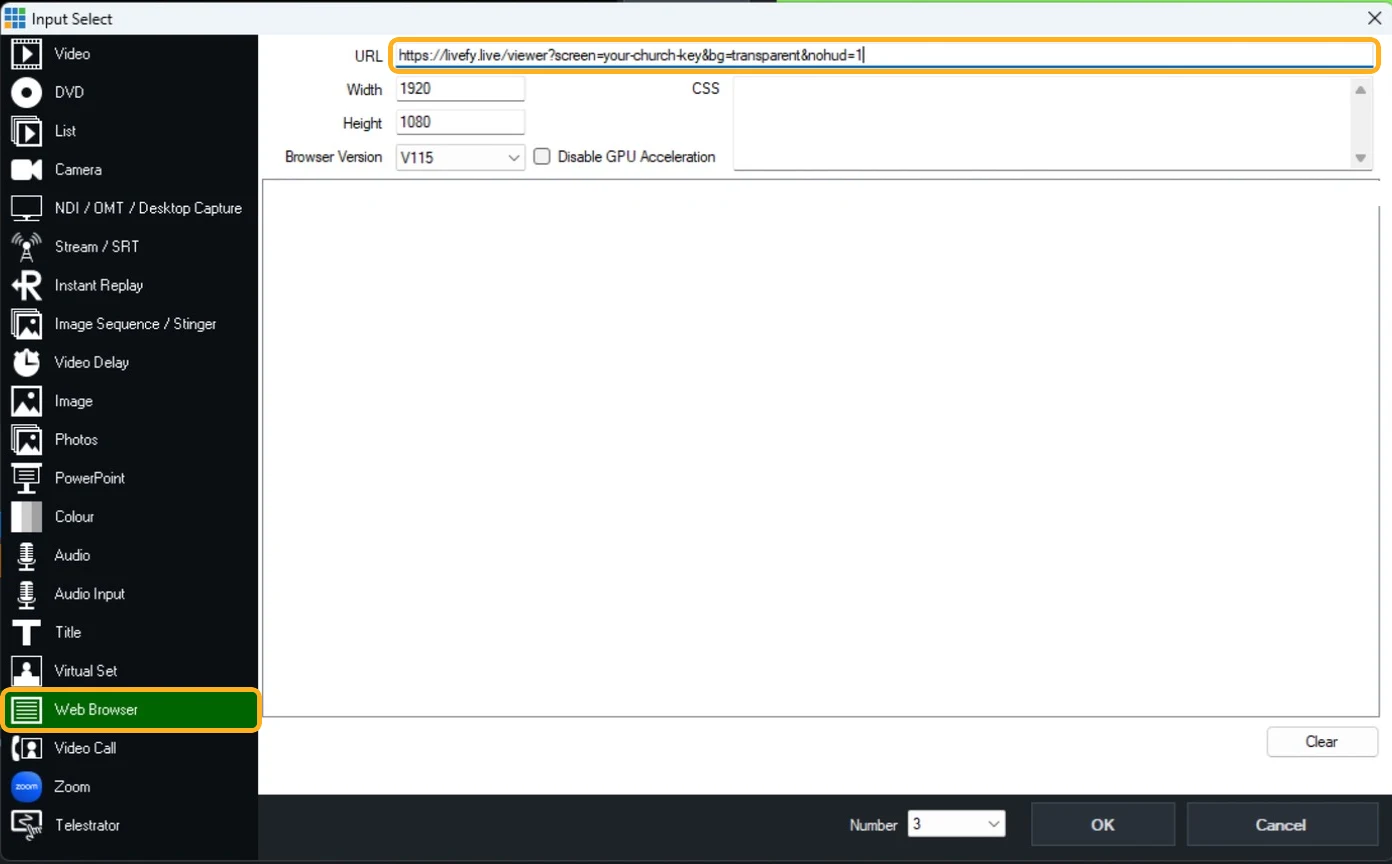
Press Add Input at the bottom left, choose Web Browser in the list on the left, and paste the link into URL.
There is no Inputs menu: Add Input is a button along the bottom of the main window.
3
Set the size
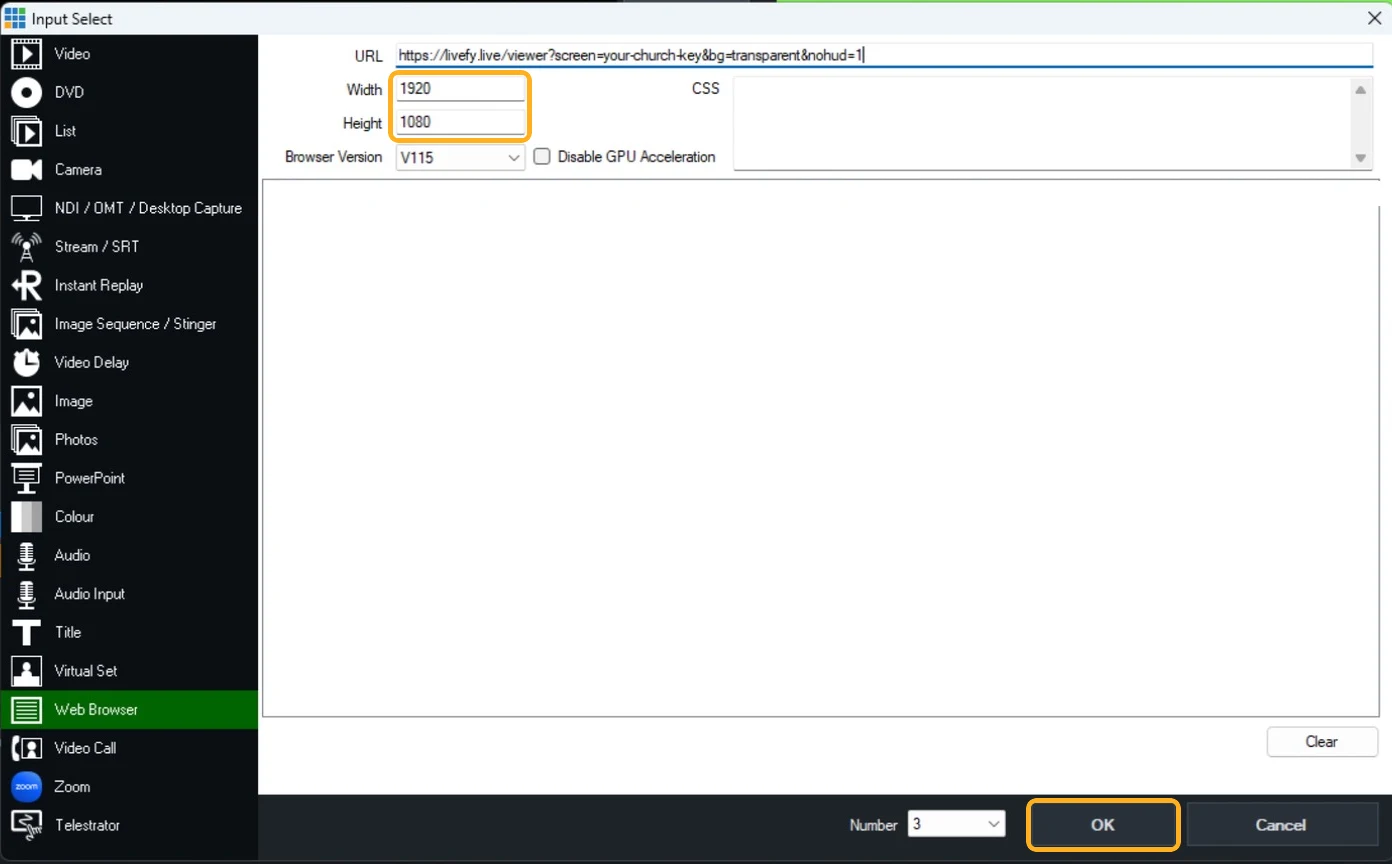
Check that Width reads 1920 and Height 1080, and press OK.
vMix draws the page at the size you set and centres it if it is smaller than your output, so a small input gives small captions in the middle of the frame. Below 720 pixels wide the captions switch to their phone shape.
4
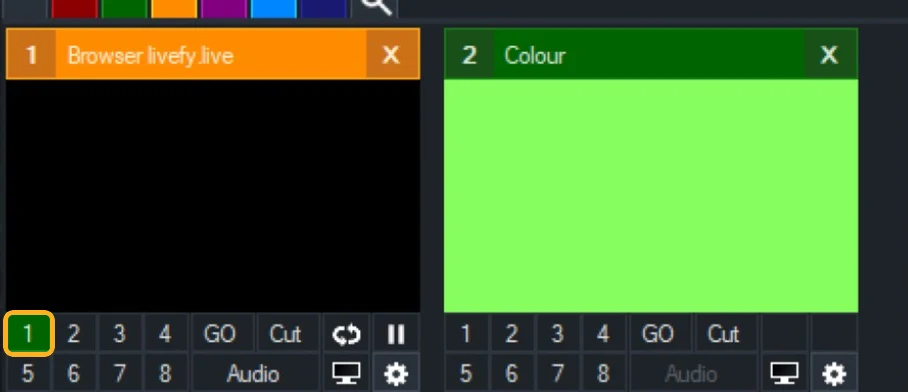
Put it on an overlay channel
Under the input's thumbnail, press the small 1.
The captions then sit on top of whatever is in Output. The page is see-through and vMix keeps it that way: no Colour Key, no chroma filter. Tested on vMix 29 with the captions over a plain colour.
5
Go live
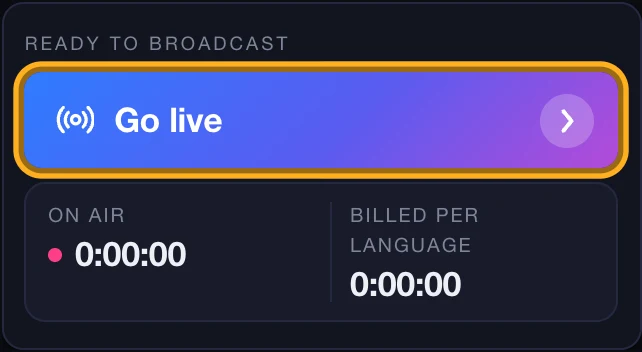
In the Languages card pick the speaker language and the caption languages, then press Go live.
The words arrive in vMix within seconds, so you can check their size and place. Press Pause while you adjust: Pause stops translation.
6
Shape the Overlay look
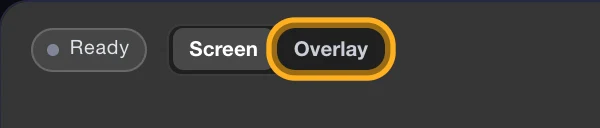
On the Live page, switch the preview from Screen to Overlay (at the top of the display, or of the Text or Backdrop card), then use the Text and Backdrop cards.
The Overlay has a look of its own, separate from the projector's: font and size, the bar behind the words, the outline, rows, and where the words sit. Changes reach vMix within a few seconds without touching the input.
7
Stream
Start your stream as usual.
The captions are part of the picture, so anyone watching sees them wherever the stream goes. The join QR is on at the start of every service, so people can scan it off the stream and get the translation on their own phone; the switch for it is in the Outputs card, under Overlay.
Running OBS instead? The same link works there too, in a Browser
source. See the OBS guide.
PRICING
Pricing for streamed and in-room services
The vMix integration is on every plan. Pick the one that matches how often you run.
One hour of preaching into three languages costs
$5,417
in interpreters, booths and receivers, at published 2025 rates. Here it is
three hours off your plan.
See the arithmetic
One language included; add more, each metered by the hour
Captions on screens, on phones, and in OBS, vMix, ProPresenter or any app that takes a link
Your slides on the screens, with the translation beside them or over them
A welcome card with your logo and QR code for the screens before the service
Translated voice on phones, included
Downloadable transcripts, sermon summaries, and subtitles for YouTube in every language
Dubbed audio for YouTube in each language of a service that has a voice, from your own recording of it (uses hours; a free trial makes a short preview)
Stream Deck and Companion buttons: go live, pause, end, change languages, the voice and the welcome card
One language included; add more, each metered by the hour
Captions on screens, on phones, and in OBS, vMix, ProPresenter or any app that takes a link
Your slides on the screens, with the translation beside them or over them
A welcome card with your logo and QR code for the screens before the service
Translated voice on phones, included
Downloadable transcripts, sermon summaries, and subtitles for YouTube in every language
Dubbed audio for YouTube in each language of a service that has a voice, from your own recording of it (uses hours; a free trial makes a short preview)
Stream Deck and Companion buttons: go live, pause, end, change languages, the voice and the welcome card
$6 an hour on a monthly plan (5 hours for $30), $8 without one (5 hours for $40). On your balance straight away, and bought hours never expire.
Every subscription includes
Live captions
Screen & OBS display
Transcripts and YouTube subtitles
Every plan includes one language. Additional languages run at the same time and use their own hours. A 90-minute service in three languages uses the hours three times over, once for each language.
VMIX FAQ
Common questions
Do I need a vMix plugin?
No. The Web Browser input is part of vMix and is not a separately licensed add-on. You paste a URL into a field, and that is the whole integration.
Which vMix edition do I need?
Any edition that has enough room for it, and that is worth checking before Sunday. The browser counts as one of your inputs, so on Basic HD, which allows four in total, it uses a quarter of your budget. Basic HD also has one overlay channel rather than eight, so you cannot stack a second language over the first. The free vMix Basic caps output at 768 by 576, below the size this page recommends.
Does a browser window have to stay open on the vMix machine?
No. vMix loads the page itself inside the input, so there is nothing to leave running and nothing an operator can accidentally close mid-service.
Does the vMix machine have to be the one running Livefy?
No. The link carries your screen token, so the caption input can live on the vMix machine in the control room while the operator runs Livefy from a laptop at the sound desk, or from another building. They only need to reach the internet. Use Copy link rather than "Open here": the "Open here" button makes a window that only works on that computer.
Will the captions have a black box behind them?
No. Tested on vMix 29: the Overlay link paints no background, and vMix keeps the page see-through, so the words composite straight over your programme with no Colour Key. If you do see a dark strip behind the words, that is the bar in your Overlay look, and the Backdrop card switches it off. Check it once in a rehearsal rather than first thing on a Sunday.
Why does the stream look different from the projector?
Because each output has its own look. The projector uses the Screen look and the vMix input uses the Overlay look, so the stream can have a bar and a heavier outline while the projector stays plain, or the other way round. On the Live page, switch the display to Overlay and the Text and Backdrop cards edit the stream's look; switch it back to Screen and they edit the projector's.
Can the join QR go in the stream?
Yes, two ways. It is part of the Overlay from the start of every service, in the top corner, and the switch for it is in the Outputs card under Overlay. Or press QR link there for a page that shows nothing but the QR, and give it a Web Browser input of its own that you can place and size wherever you like.
Which language does the input show?
Whichever language you have on the screens. The Overlay link deliberately follows the console, so changing what is running does not send anyone back to the control room with a new URL. To pin one language instead, add &lang= and its code to the end of the link, for example &lang=es for Spanish. Add a second Web Browser input with a different pinned language to run two at once.
Does running more languages cost more?
Cost follows the languages running in the session, not the number of vMix inputs. Two inputs pointed at a language that is already running cost nothing extra. Three languages during an hour of preaching use three translation hours. Pause stops translation, for example during songs.
Can the projector show one language while the stream carries another?
Yes, but not by default: both links follow the console, so out of the box they show the same language. Pin one of them by adding &lang= to its URL, or set up a Room for the in-room screen, which chooses its own language on purpose.
What happens if the internet drops mid-service?
The caption page reconnects on its own, retrying with a widening gap until it is through, and the last caption stays on screen while it does. vMix keeps the input loaded and does not need to be touched. The one case that needs a hand is a cold start: if the input is first opened while the connection is down, there is no page to do the reconnecting, so reload the input once the network is back.
FREE TRIAL
Try it on this Sunday’s service.
First 4 hours free, about 5 Sunday services in one language. No credit card.