

Livefy
Livefy
PROPRESENTER INTEGRATION

ProPresenter live translation, over your slides.

Paste one link into a prop and the translation sits above whatever is on screen, through every song and every sermon slide. Nothing to install, and the ProPresenter machine does not have to be the one running the session.

First 4 hours free, no credit card. Then from $45 a month.

EXAMPLE · AUDIENCE
Captions layer over the slide, the artwork still showing.
SETUP

ProPresenter live translation: one field, one link.

Before you start

  • A Livefy account. First 4 hours free, no credit card. Start my free trial
  • The sermon's sound reaching the computer that runs Livefy, from the mixing board or a microphone. How to connect it
  1. 1

    Copy the Overlay link

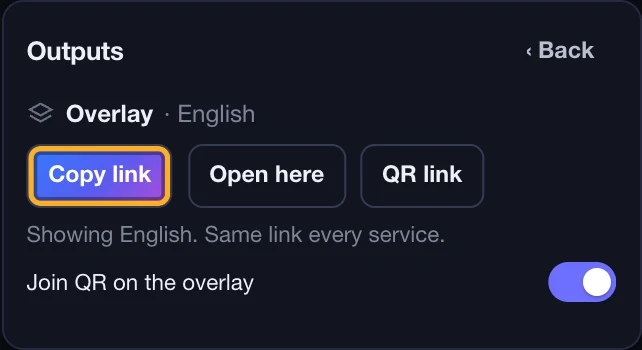
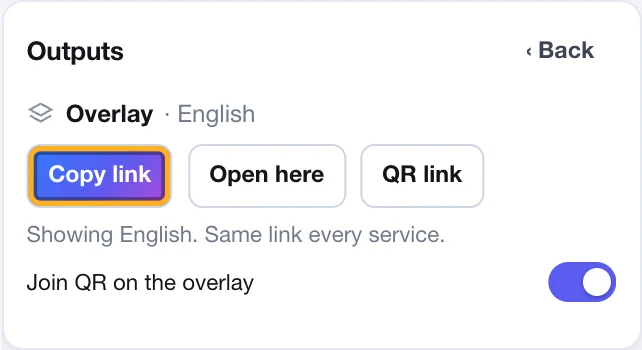
    On the Live page, open Outputs, choose Overlay and press Copy link.

    You do not need to be live yet. It is the same link every service. It paints no background and never shows a message, and it carries your church's screen token, so it works from any computer on any network. The same link is on the Phones & screens page under "A video mixer or stream".

    The Outputs card on the Live page, opened on Overlay, with the Copy link button ringed.The Outputs card on the Live page, opened on Overlay, with the Copy link button ringed.
  2. 2

    Make a prop

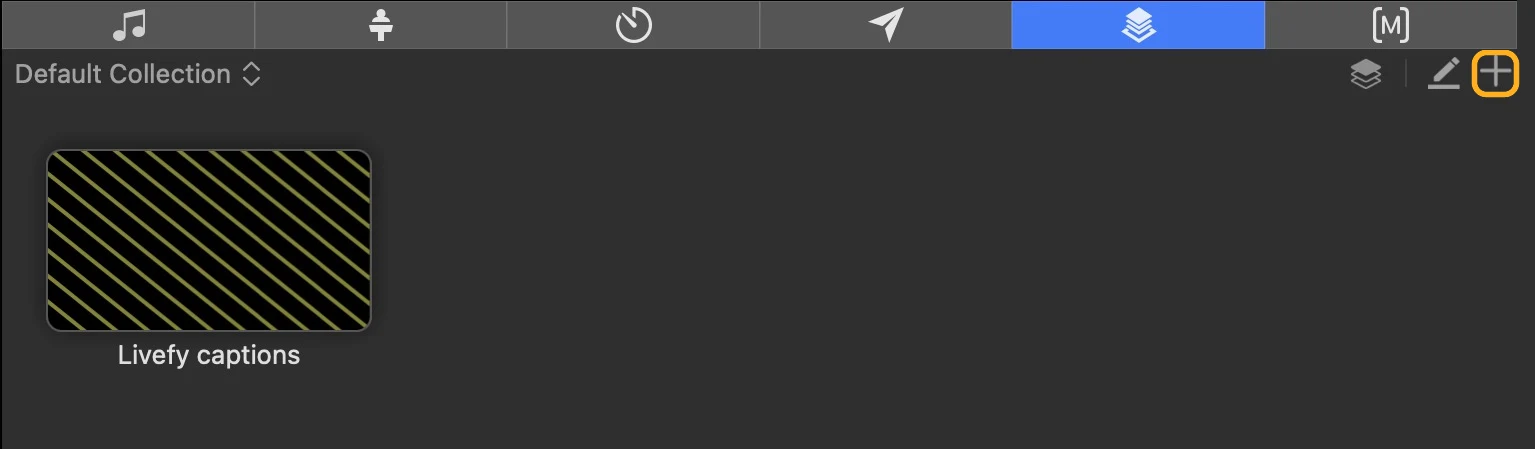
    Open the View menu, choose Props, press + at the top right of the Props panel and give the prop a name, for example "Livefy captions".

    A prop is a layer above your slides: it stays on screen while you move through songs, scripture and sermon slides.

    The Props panel in ProPresenter with the + button ringed and a prop named Livefy captions.
  3. 3

    Add the web object and paste the link

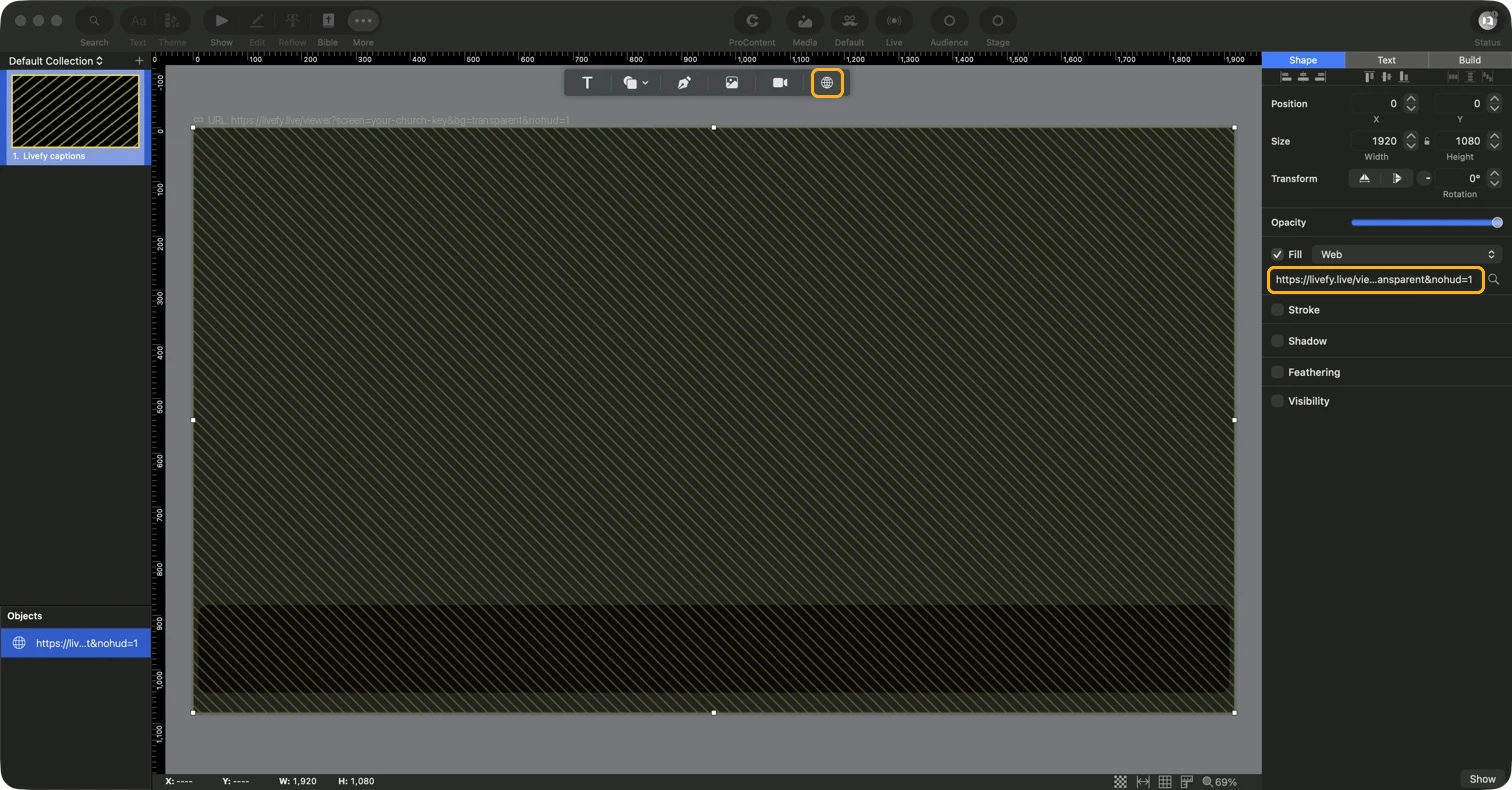
    In the prop editor, click the globe, the last of the tool icons above the slide, paste the link into the URL box on the right and press Return.

    The object's Fill reads Web. The prop stays empty until you go live; then its own preview shows the join QR within a few seconds. If it is still empty once you are live, click into the URL box and paste again: the box keeps the link only once the entry commits, and a prop with no link shows an empty page.

    The ProPresenter prop editor with the web object selected: the globe tool ringed above the slide, and the Livefy link ringed in the URL box under Fill: Web.
  4. 4

    Size it to the screen

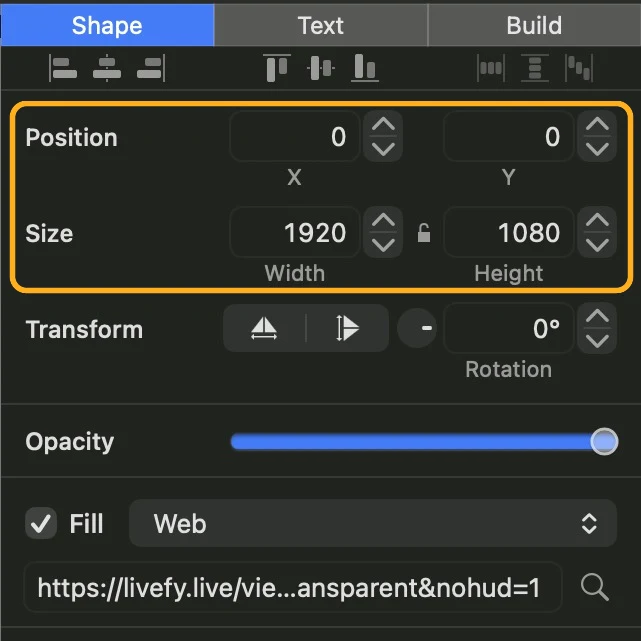
    In the panel on the right, set Size to 1920 by 1080 and Position to 0 and 0.

    The object then covers the whole frame, and the words sit where the Livefy display shows them rather than shrinking into the middle of the slide.

    The Shape panel of the web object with Position 0 and 0 and Size 1920 by 1080 ringed.
  5. 5

    Put it on screen

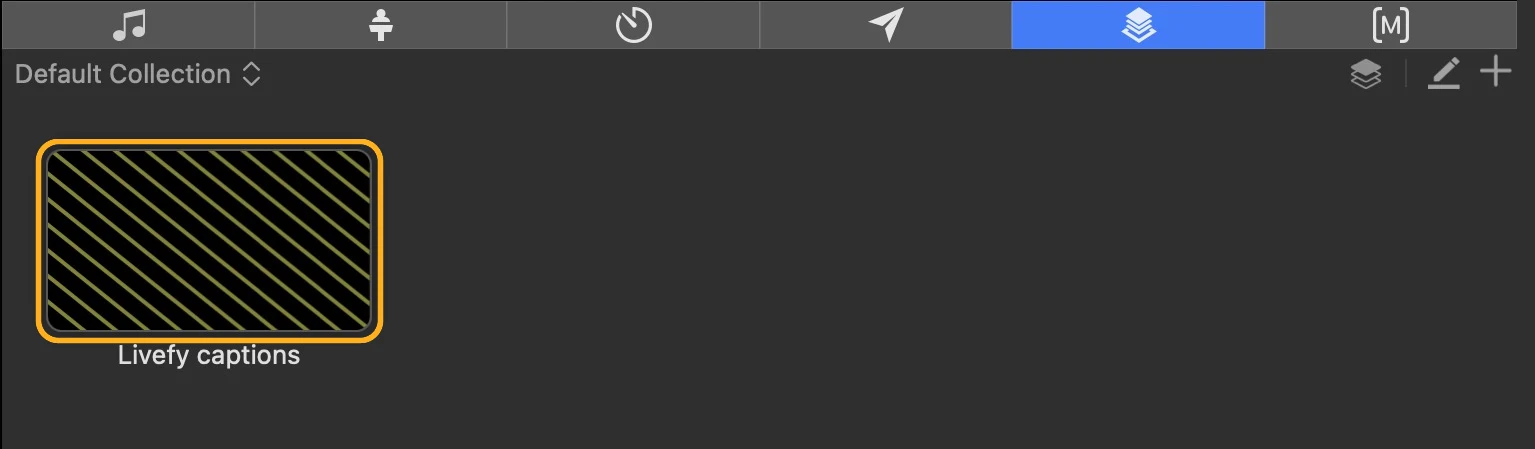
    Close the editor and click the prop's thumbnail in the Props panel.

    The captions appear over whatever slide is live, and the artwork behind them keeps showing: no key, no filter. Click the thumbnail again to take them off. Tested on ProPresenter 21.4 with the captions over a live slide.

    The Props panel in ProPresenter with the Livefy captions thumbnail ringed.
  6. 6

    Go live

    In the Languages card pick the speaker language and the caption languages, then press Go live.

    The words arrive in ProPresenter within seconds, so you can check their size and place. Press Pause while you adjust: Pause stops translation.

    The Go live button on the Live page, ringed, above the On air and Billed per language clocks.The Go live button on the Live page, ringed, above the On air and Billed per language clocks.
  7. 7

    Shape the Overlay look

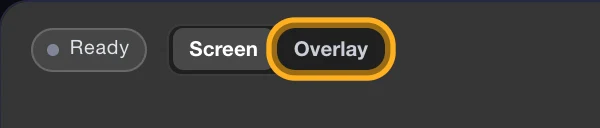
    On the Live page, switch the preview from Screen to Overlay (at the top of the display, or of the Text or Backdrop card), then use the Text and Backdrop cards.

    The Overlay has a look of its own, separate from the projector's: font and size, the bar behind the words, the outline, rows, and where the words sit. Changes reach ProPresenter within a few seconds without touching the prop. The join QR is on from the start of every service, so people can scan it off the screen and get the translation on their own phone.

    The top of the caption preview on the Live page: its Screen and Overlay switch, with Overlay ringed.The top of the caption preview on the Live page: its Screen and Overlay switch, with Overlay ringed.

Streaming the service as well? The same link goes into OBS Studio and vMix, and both can run at the same time as the prop.

PRICING

Pricing for in-room and streamed services

The ProPresenter integration is on every plan. Pick the one that matches how often you run.

One hour of preaching into three languages costs $5,417 in interpreters, booths and receivers, at published 2025 rates. Here it is three hours off your plan. See the arithmetic

Not sure how many hours you need? Estimate your month.

13% off

Church - 10 hours

Weekly services in one language.

$45/month
Just $1.48 a day
Billed monthly · cancel anytime

10 translation hours each month

  • About 3 services a week in one language, or
  • 1 service a week in three languages

Counting a service as 45 minutes of translation.

  • 109 live translated languages
  • Unused hours roll over while you have the plan
  • Pause stops translation, for example during songs
  • One language included; add more, each metered by the hour
  • Captions on screens, on phones, and in OBS, vMix, ProPresenter or any app that takes a link
  • Your slides on the screens, with the translation beside them or over them
  • A welcome card with your logo and QR code for the screens before the service
  • Translated voice on phones, included
  • Downloadable transcripts, sermon summaries, and subtitles for YouTube in every language
  • Dubbed audio for YouTube in each language of a service that has a voice, from your own recording of it (uses hours; a free trial makes a short preview)
  • Stream Deck and Companion buttons: go live, pause, end, change languages, the voice and the welcome card
Start my free trial

First 4 hours free · No credit card

12% off

Church Max - 50 hours

Large churches, networks, several campuses.

$169/month
Just $5.56 a day
Billed monthly · cancel anytime

50 translation hours each month

  • About 15 services a week in one language, or
  • 5 services a week in three languages

Counting a service as 45 minutes of translation.

  • 109 live translated languages
  • Unused hours roll over while you have the plan

Everything in Church Plus, plus:

  • A named contact for your team
Start my free trial

First 4 hours free · No credit card

Not right for your church? Ask within 30 days of a payment and we refund the hours of it you have not used, once per church. How refunds work.

A single event needs no plan. Event pricing.

Above 50 hours

Network

Church networks, denominations and broadcasters.

Hours sized to your calendar across every campus, with onboarding and a named contact.

Need more time

Extra hours

A conference week or a wedding season, without moving up a tier.

$6 an hour on a monthly plan (5 hours for $30), $8 without one (5 hours for $40). On your balance straight away, and bought hours never expire.

Every subscription includes
  • Live captions
  • Screen & OBS display
  • Transcripts and YouTube subtitles

Every plan includes one language. Additional languages run at the same time and use their own hours. A 90-minute service in three languages uses the hours three times over, once for each language.

PROPRESENTER FAQ

Common questions

Do I need a ProPresenter plugin?

No. The web object is part of ProPresenter: it is the globe icon in the row of tools above the slide, and its Fill is called Web. You paste a link into it, and that is the whole integration.

Do the captions stay up when I change slides?

Yes, because they go in a prop rather than in a slide. A prop is a layer above the presentation, so it keeps showing while you move from a song to scripture to a sermon slide. A web object placed inside one slide would only show on that slide, which is no use through a service.

Will the captions have a black box behind them?

No. Tested on ProPresenter 21.4: the Overlay link paints no background, so the words and the join QR draw over the live slide with the artwork still showing, and no key or filter is involved. If you do see a dark strip behind the words, that is the bar in your Overlay look, and the Backdrop card switches it off.

I clicked the prop and nothing appeared on screen.

Almost always the link never took. Open the prop, click into the URL box under the Web fill, paste the link again and press Return, then watch the prop's own preview once you are live: the join QR should appear within a few seconds. A prop whose URL did not commit renders an empty page, which looks exactly like a prop that will not trigger. This caught us during testing.

Does a browser window have to stay open on the ProPresenter machine?

No. ProPresenter loads the page itself inside the prop, so there is nothing to leave running and nothing an operator can close by accident.

Does the ProPresenter machine have to be the one running Livefy?

No. The link carries your screen token, so the prop can live on the ProPresenter machine in the booth while the operator runs Livefy from a laptop at the sound desk. They only need to reach the internet. Use Copy link rather than "Open here": the "Open here" button makes a window that only works on that computer.

Can I keep the captions off the screen but still send them to the stream?

Yes. Take the prop off screen and the room sees only your slides, while a Browser source in OBS Studio or a Web Browser input in vMix carries the captions into the stream from the same link. The prop is a switch you can use during the service, so the captions can come on for the sermon and go off for the songs.

Which language does the prop show?

Whichever language you have on the screens. The Overlay link deliberately follows the console, so changing what is running does not send anyone back to the booth with a new URL. To pin one language instead, add &lang= and its code to the end of the link, for example &lang=es for Spanish. A second prop with a different pinned language lets you switch between them.

Does running more languages cost more?

Cost follows the languages running in the session, not the number of props. Three languages during an hour of preaching use three translation hours. Pause stops translation, for example during songs.

What happens if the internet drops mid-service?

The caption page reconnects on its own, retrying with a widening gap until it is through, and the last caption stays on screen while it does. ProPresenter keeps the prop loaded and does not need to be touched. The one case that needs a hand is a cold start: if the prop is first put on screen while the connection is down, there is no page to do the reconnecting, so take the prop off and put it back once the network is up.

FREE TRIAL

Try it on this Sunday’s service.

First 4 hours free, about 5 Sunday services in one language. No credit card.