
This church translation setup guide takes you from "I have an audio mixing board and a laptop" to "live translated captions on the projector, over ProPresenter slides, and in the OBS or vMix stream." It assumes a typical church setup: a mixer on the back wall, lapel or pulpit mic plugged in, a laptop with a web browser, and either a projector, TV, or live-streaming rig. It is the same job people call a church translation system or a church interpretation system, done with no interpreters, and no receivers or headsets needed.
Still choosing how to do it? Read how to translate a sermon live and what church translation equipment costs first.
Plan on 15 minutes the first time. After that, week-to-week is just "open Livefy, click Go live."
- A laptop or desktop computer running Chrome (or another Chromium browser). Phones and tablets cannot run a service.
- Microphone audio that captures the speaker clearly
- A screen for captions: projector, TV, second monitor, ProPresenter, OBS or vMix, or all of the above
- A Livefy account. First 4 hours free, about 5 Sunday services in one language. No credit card.
1. Get audio from your mixing board into Livefy
Livefy listens to whatever microphone Chrome is set to. Your job is to send a clean copy of the speaker's voice from your mixing board into the laptop running Livefy. The cleanest way to do that is with a USB audio interface: a small box that turns a line-level audio signal from the mixer into a USB input Chrome can read.
Option A: USB audio interface (recommended)
Best balance of audio quality and reliability. Buy once, use every week.
What you need to buy
-
USB audio interface, 1 input is plenty.
Good starter options:
- Focusrite Scarlett Solo (4th gen): about $120, rock-solid
- Behringer UMC22: about $60, budget-friendly, works fine
- PreSonus AudioBox USB 96: about $100
-
Cable from mixer to interface. Match what your mixer's
output uses:
- ¼" TRS to ¼" TRS: most common for "Aux Out" or "Sub Out"
- RCA to ¼" TRS: if the mixer only has "Tape Out" (RCA jacks)
- XLR to XLR: if you want to feed the interface's mic input
- USB cable: almost always included with the interface.
Step-by-step
- Pick an output on the mixer that's separate from your house sound. Look for "Aux 1 / Aux 2", "Sub Group", or "Tape Out". Don't tap the Main Out directly: anything that goes to your speakers also goes there, and you don't want to send worship band audio into the translator.
- Route the speaker's mic channel to that output. On the speaker's channel strip (the pastor's mic), press the Aux Send or Sub Group button so that channel goes to the output you picked.
- Connect that output to the USB interface's input. ¼" TRS or whatever cable matches.
- Plug the USB interface into the laptop. Chrome will pick it up automatically; no driver install needed for the brands above.
- Set the interface input gain. Most interfaces have a gain knob with a green/red light. Have the pastor speak at their normal volume; turn the gain up until the light glows green most of the time and only flickers red on the loudest words.
Option B: Direct cable to the computer
Some computers, mostly desktops and older laptops, still have a 3.5mm line-in jack (different from the headphone jack: line-in accepts a stronger signal). Most modern laptops don't. Check yours before relying on this.
What you need
- A computer with a real 3.5mm line-in (rare on laptops today)
- A cable from your mixer's output (¼" TRS or RCA) to a 3.5mm TRS plug
- Optionally a passive attenuator if the mixer output is too hot
Option C: USB mixer (you already have one)
Many modern mixing boards have built-in USB audio: look for a USB-B port on the back. Models like Behringer Xenyx Q802USB, Yamaha MG10XU, Mackie ProFX series, PreSonus StudioLive, and most current Allen & Heath / Soundcraft boards include this.
If your board has it, you don't need a separate interface. Connect a USB cable from the mixer directly to the computer. The mixer's "Main Mix" or "Stereo Out" is usually what gets sent over USB. Some boards let you route any channel directly to the USB stream; check the manual.
Configure Chrome & Livefy
These steps use Chrome. Edge, Safari and Firefox work too, with one difference: only Chrome and Edge can take the sound of a browser tab.
-
Open Livefy in Chrome on the laptop:
https://livefy.live. Sign in. - Grant microphone permission when Chrome asks (the first time only). If you skipped it, click the small camera/mic icon in Chrome's address bar → set Microphone to "Allow" → reload.
- Open the Audio card on the Live page. Source: This computer. Microphone dropdown: select your audio interface (e.g. "Scarlett Solo USB" or "Behringer UMC22"). Don't pick the computer's built-in mic: it captures everything in the room.
- Watch the Level meter. Have someone speak into the mic at normal volume. The bar should bounce green halfway up. If it stays flat at zero, your routing on the mixer is wrong (see step 2 of Option A). If it's pinned at the top, the gain on the interface is too high.
- Set the speaker language. In the Languages card, Speaker language is the language being preached in. Naming it tells Livefy which language to expect, so captions start sooner and fewer words are misheard. The console asks for it before the first service, and Go live waits until it is set. If the preacher moves between two languages, choose the one used most.
- Pick your caption languages in the same card, with Add languages. Add one for each language your congregation needs.
- Click Go live. The translation appears on screen within seconds, a word at a time.
2. Show captions on screen
Livefy renders captions in a dedicated viewer window. You open as many viewer windows as you need: one per target language, one per screen.
Projector or TV
- Plug the projector or TV into the operator laptop via HDMI. Set Display Settings to Extend (Windows) or Mirror Off / Extend (Mac), so the projector is a second monitor.
- On the Live page, in the Outputs card click Screen, then Open here. A new Chrome window opens with just the captions.
- Drag that window onto the projector display (the second monitor). Maximize it.
- Press F to go fullscreen: captions fill the entire projector. Press Esc to exit fullscreen.
- Adjust caption appearance from the Live page's Text and Backdrop cards while you're presenting: size, font, colour and line height all reach the screen live, and so does the place you drag the captions to on the display.
Slides with the translation
The pastor's slides can go on the screens with the translation beside them, so nobody has to choose between the slide and the words.
- Save the slides as a PDF. In PowerPoint or Keynote, export or save them as a PDF. Pictures (JPEG, PNG or WebP) work too.
- On the Live page, in the Outputs card click Slides, then Add slides, and choose the file.
- Click through with Next and Previous, the arrow keys, Page Up and Page Down, or a presentation clicker. B hides the slide and leaves the captions alone on the screen.
- Choose how they share the screen. Bar: Beside keeps the translation clear of the slide, which takes the side of the screen with more room; Over lays the translation on top of the slide. Slide: Whole shows all of it; Fill covers the space edge to edge and crops what does not fit. Both choices apply to every screen, here and on other computers.
- Keep the ones you use every week. In a slide's ••• menu, Save for every service puts it in the Saved group. Point at a slide and click its X to take it away; the ••• beside the grid and list buttons clears this service's slides and leaves the saved ones.
- The slides also reach screens on other computers, such as ProPresenter or OBS showing the Screen or Overlay link, once you press Go live.
- Before a service, the display shows no sample words over a slide. To place the translation bar or change its look, hide the slide, set the bar, then show the slide again. During a service the bar over a slide can be dragged and changed as it is.
- Videos and animations inside a presentation do not survive saving it as a PDF. Add a video as a file of its own (MP4) with Add slides.
- A video plays on the screens run from this computer, with Play, Pause and Restart under the buttons, and its sound comes from this computer. It waits on its first frame until you press Play. Screens on other computers, such as ProPresenter, show the captions alone while it plays, so play videos there in ProPresenter itself.
- During a service, the translation listens to the video's own sound while it plays, instead of the microphone, so what is said in the video is translated too, and counts as translation time. For a video with only music, turn off Translate its sound beside Play.
- To show a video with no words and no bar on the screens, turn off Words on screens beside it. The phones still get the translation. To stop the translation everywhere instead, press Pause.
- A video is never sent to us: it stays in this computer's browser and is deleted 7 days after it was added.
- Slides are kept for 7 days from the last time they were sent, so those screens can load them, then deleted.
The welcome card
A 16:9 card for the screens while people arrive: your logo, your church's name, a title and a short greeting, the languages you translate into, and the QR code to the phone page.
- Make it on the Phones & screens page: type the words, add your logo and pick the colours. The Welcome card tile in the Outputs card leads there.
- Put it up from Slides. It sits with the Saved slides and fills the whole screen, in place of the captions, until you hide it or move to another slide.
- Or give it a place of its own. Copy its link into ProPresenter as a prop of its own, or download it as a picture for anything else that shows one.
Through a video switcher (chroma key)
Some churches send the screen through a video switcher, to an LED wall or into the stream, and want only the words over their own picture. The switcher cuts out one solid colour, so the Screen needs a solid green or blue background behind the words.
- Connect the computer to the switcher with HDMI and open the Screen on it, as for a projector: in the Outputs card click Screen, then Open here, and press F for fullscreen. On another computer, use Copy link instead.
- Paint the background. On the Live page, in the Backdrop card, choose Screen at the top of the card, turn on Fill, and set Fill colour to pure green (#00FF00) or pure blue (#0000FF).
- Keep the words clear of the key. In the same card, slide the bar's Opacity to the top, or turn the Bar off and the Outline on. A see-through bar over green comes out dark green, which the switcher only half removes. Keep the words a colour other than the key: white is usual.
- Leave the QR code off the wall, if you like: in the Outputs card click Screen and turn off QR on the screen.
- On the switcher, set its chroma key to the same colour, as its manual describes.
- The Screen follows these settings as you change them, so there is no need to open it again.
- A switcher with a luma key can use a black fill instead: the key removes the dark background and keeps the white words.
- Until you go live, the Screen shows a short note that it is waiting for captions.
- Slides and the welcome card appear on the Screen as they are; the key removes only the green around them.
- Running OBS Studio, vMix or ProPresenter instead? Use the Overlay link in section 4: it is already see-through, with no key.
Tips
- Drag the captions up or down on the display on the Live page: the lower third of the screen is usually easier to read than the centre.
- Multilingual congregations: open one viewer window per language and drop each on a different screen.
- The viewer window stays connected to the Live page as long as both Chrome windows are open in the same browser profile.
3. Let people follow on their phones
Anyone can follow the translation on their own phone: no app, no account, and no church Wi-Fi, as the phone uses its own connection. Everything for it is in the Phones card on the Live page, and the Phone preview beside the display shows the phone page as a guest sees it.
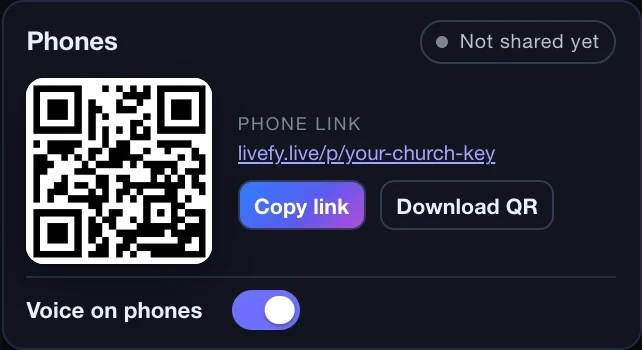
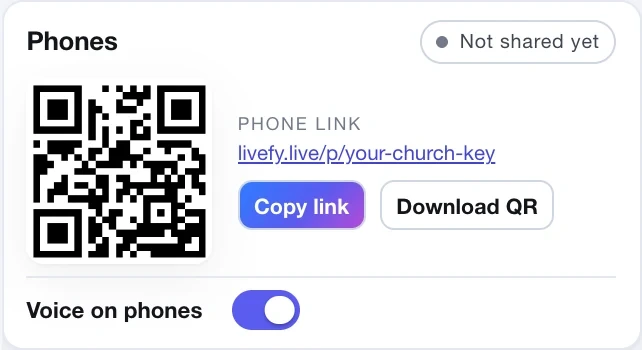
- The QR on the screen. With QR on the screen on (in the Outputs card, under Screen), the join QR sits in a corner of the screen, so people can scan it from their seat with the phone's camera.
- Download QR saves the code as a picture for the bulletin or a slide. It is the same every service, so it can be printed once. The welcome card puts it on the screens before the service. Print sheet, on the Home page, makes a page for the door with the QR and a short code people can type.
- The phone link. Copy link gives the same address as the QR, for a group chat, an email or the church website.
- Voice on phones. With it on, people can press Listen on their phone and hear the translation read aloud, for example with headphones. While a phone listens, it shows the words being read, and the word being said lights up.
-
How the voice reads. Chosen in Settings,
under Phones, and used from the next time you go live:
- Each piece. Starts reading soonest. A piece cut in the middle of a phrase is read with a full stop's falling tone, so it sounds choppy.
- Comma or full stop. Waits for a comma or a full stop, then reads the phrase with its own intonation. A few seconds behind the speaker.
- Full stop. Waits for each full stop, then reads the sentence as the captions show it. A little later than a phrase at a time, and smoother.
- Whole sentences. Waits for each sentence to be complete, has it smoothed into one natural sentence (references and numbers in words), and reads it at an even pace, never rushing. Starts about half a minute after the first words.
- Before the service. A phone that opens the link early waits, and joins on its own when you press Go live.
4. Send captions into OBS Studio, vMix or ProPresenter
All three programs take the same link, and all three were tested with it: OBS 32 on a Mac, vMix 29 on Windows and ProPresenter 21.4 on a Mac. Setup time: about five minutes.
Copy the Overlay link
- On the Live page, open Outputs, choose Overlay and press Copy link.
- You do not need to be live yet. It is the same link every service. It paints no background and never shows a message, and it carries your church's screen token, so it works from any computer on any network. The same link is on the Phones & screens page under "A video mixer or stream".
- Use it rather than Open here: that button makes a window that only works on the computer running Livefy.
OBS Studio: add a Browser source
- In Sources, press +, choose Browser, give it a name and press OK. Browser is a source type built into OBS on Windows, macOS and Linux, so there is nothing to install.
- Paste the link into URL, set Width to 1920 and Height to 1080, and press OK. OBS draws the page at the size you set here: a small size gives small captions in a corner, and 1920 by 1080 puts the words where the Livefy display shows them. Below 720 pixels wide the captions switch to their phone shape. Leave Custom CSS as OBS fills it in.
- In the Sources list, drag the Livefy source above your camera or slides. Sources higher in the list draw on top. The page is see-through and the Browser source keeps it that way, so the picture underneath keeps showing: no Color Key, no filter. Tested on OBS 32 with the captions over a plain colour.
vMix: add a Web Browser input
- Press Add Input at the bottom left, choose Web Browser in the list on the left, and paste the link into URL. There is no Inputs menu: Add Input is a button along the bottom of the main window.
- Check that Width reads 1920 and Height 1080, and press OK. vMix draws the page at the size you set and centres it if it is smaller than your output, so a small input gives small captions in the middle of the frame. Below 720 pixels wide the captions switch to their phone shape.
- Under the input's thumbnail, press the small 1. The captions then sit on top of whatever is in Output. The page is see-through and vMix keeps it that way: no Colour Key, no chroma filter. Tested on vMix 29 with the captions over a plain colour.
ProPresenter: a web object in a prop
- Open the View menu, choose Props, press + at the top right of the Props panel and give the prop a name, for example "Livefy captions". A prop is a layer above your slides: it stays on screen while you move through songs, scripture and sermon slides.
- In the prop editor, click the globe, the last of the tool icons above the slide, paste the link into the URL box on the right and press Return. The object's Fill reads Web. The prop stays empty until you go live; then its own preview shows the join QR within a few seconds. If it is still empty once you are live, click into the URL box and paste again: the box keeps the link only once the entry commits, and a prop with no link shows an empty page.
- In the panel on the right, set Size to 1920 by 1080 and Position to 0 and 0. The object then covers the whole frame, and the words sit where the Livefy display shows them rather than shrinking into the middle of the slide.
- Close the editor and click the prop's thumbnail in the Props panel. The captions appear over whatever slide is live, and the artwork behind them keeps showing: no key, no filter. Click the thumbnail again to take them off. Tested on ProPresenter 21.4 with the captions over a live slide.
No Color Key, no chroma filter: the page is see-through and all three programs keep it that way. A hardware video switcher is different: it takes a picture, not a page, so it needs a coloured background to key on (Through a video switcher). More on each: OBS Studio · vMix · ProPresenter.
Shape what the stream shows
- On the Live page, switch the preview from Screen to Overlay (at the top of the display, or of the Text or Backdrop card), then use the Text and Backdrop cards.
- The Overlay has a look of its own, separate from the projector's: font and size, the bar behind the words, the outline, rows, and where the words sit. Changes reach OBS, vMix and ProPresenter within a few seconds without touching the source.
- The join QR is in the corner from the start of every service, so people can scan it off the stream and get the translation on their own phone. The switch for it is in the Outputs card, under Overlay.
5. Send the translated voice to your transmitter
If your church already has headsets for a human interpreter, on an FM or infrared transmitter or a tour-guide system, Livefy can feed them. The Audio feed is the translated voice as plain sound, one language per feed. You cable it into your mixer, or straight into the transmitter, exactly where the interpreter's microphone would go.
Get the feed link
- Turn the voice on for the language. On the Live page, the speaker button beside the language must be on. A language with its voice off makes no sound.
- Open Outputs, then Audio feed. Each caption language with a voice has its own link (the captions-only ones have none). Copy link to open it on another device, or Open here to run it on this computer.
- Set it up once. The link is the same every service.
Choose the device that plays it
- The computer that runs Livefy. Best with a USB audio interface that has an output; the ones in section 1 do. Open the feed on this computer and, in Sound goes to, pick the interface. Choosing the output works in Chrome and Edge; other browsers use the computer's normal output, set in its sound settings.
- A spare laptop, tablet or phone. It plays through its headphone socket. A phone without one needs Apple's Lightning or USB-C to 3.5 mm adapter and then cannot charge at the same time, so a laptop, or an Android phone with a headphone socket, is easier.
- Two languages? Two feeds: two devices, or two outputs on one computer (for example two USB adapters), each into its own mixer channel and transmitter channel.
Connect it through a mixer (the usual setup)
- Plug the device into a free line input on the mixer. From a headphone socket, use a "3.5 mm to dual ¼ inch" cable, or "3.5 mm to dual RCA" for RCA inputs. From a USB interface, a ¼" TRS cable from its output. Avoid the "tape in" or "2-track in" jacks: on many mixers they go straight to the speakers.
- Send that channel to an AUX output only. Keep it out of the main mix, or the whole room hears the translation from the speakers. On most mixers that means the channel's main (L/R) button off, or its fader down with the AUX send set to pre-fader.
- Connect that AUX output to the transmitter's input. If an interpreter's microphone already reaches the transmitter through the mixer, this cable is probably already there: send the Livefy channel to the same AUX.
Connect it without a mixer
Plug the device straight into the transmitter's line or aux input, not its microphone input, with the cable that matches it: 3.5 mm, RCA, ¼", or XLR through a DI box.
Start it and set the level
- Open the link and press Start feed. A browser only lets a page make sound after a press. From then on the feed goes out by itself whenever a service is live, and waits in between.
- On a computer, pick the output in Sound goes to. If the names are missing, press Show names. On a phone, leave it on the normal output.
- Press Test tone. Two seconds of a steady beep, about as loud as the voice at its loudest. Set the device's volume near full, then raise the mixer channel's gain, or the transmitter's input level, until the tone shows a healthy level without reaching the red.
- Check one headset while the tone plays.
- Leave it running. Keep the page open and the device on its charger. It waits for each service and reconnects on its own, even in a background tab.
What you may need to buy
- 3.5 mm to dual ¼" cable, or 3.5 mm to dual RCA: about $8 to $10.
- Ground-loop isolator (3.5 mm): about $10, if you hear a hum when the laptop is on its charger.
- DI box: about $25 to $100, for a long cable run or when only XLR inputs are free.
- Lightning or USB-C to 3.5 mm adapter: about $9, for a phone without a headphone socket.
6. Subtitles and dubbed audio for YouTube
When your church keeps transcripts, every service's words can become subtitle files, one per language, for the video of the service on YouTube.
- Keep the words. In Settings, turn on Keep the words of each service before the service (only the person who opened the account can). Services run before that have nothing to download.
- Open History in the console and find the service.
- Choose a language from the service's Download menu, under Subtitles for YouTube.
- Choose your recording of the service (the .mp4 YouTube Studio's Download gives, or the OBS or vMix file). Livefy listens to about a minute of it and lines the subtitles up with the video by itself, however long before or after Go live it started. Then press Download .srt (for YouTube) or .vtt (for most web players), once per language. Without a recording, the subtitles count from Go live.
- Add it in YouTube Studio: open the video, then Subtitles. If YouTube asks, set the video's own language first. Then Add language, choose the language, click Add under Subtitles, choose Upload file and With timing, pick the file and Publish. Repeat for each language.
Viewers turn subtitles on with the CC button and choose the language under the gear, in Subtitles/CC. If you later trim the video, download the subtitles again with the trimmed file and upload them in place of the first. The same menu also writes a sermon summary in any of the service's languages, for the newsletter or the video's description.
Dubbed audio
Dubbed audio is the sermon in another language, in place of the preacher's voice, as one audio file per language for the video. The words Livefy kept are translated again as one flowing text and read aloud; wherever nothing was translated, such as songs while the translation was paused, the video keeps its own sound. On YouTube, viewers choose it under the gear, in Audio track. Apart from about a minute that is heard to line it up, the recording stays on your computer.
- Get the recording. In YouTube Studio, open Content, the video's menu, then Download. Or use the file OBS or vMix recorded. Livefy reads .mp4, .mov, .m4a, .mp3 and .wav; in OBS, File, Remux Recordings turns an .mkv into an .mp4.
- Open History on a computer with Chrome or Edge.
- Open the service's Download menu and, under Dubbed audio for YouTube, choose Every language (or the language's name, when the service had only one). Leave ticked the languages you want and choose the recording: Livefy finds the service in it by itself, and says what it uses. Press Make the dubbed audio once. It makes one language after another and takes a while for a whole service: keep the page open. Each language's .wav file goes to your downloads when it is ready; if Chrome asks to allow several downloads, choose Allow, or press that language's Save.
- Add each file in YouTube Studio: open the video, then Languages, Add language, choose the language, then Add under Dub, upload that language's file and Publish. Adding audio tracks needs YouTube's advanced features turned on for the channel, and if YouTube made its own automatic dub in that language, remove it first.
A dub uses hours: in each language, the time the service was live in that recording. Making it again for the same stretch uses no more. A free trial can make a short preview instead, using none of its hours. Songs sung while the translation ran are read aloud too, so pause the translation for the songs to keep them as they were.
7. Zoom, Google Meet and Teams
A small group, Bible study or prayer meeting held online can be translated too. Livefy listens to the meeting's own sound through the Browser tab source, and people follow on their phones as on a Sunday.
- Open the meeting in Chrome or Edge on a computer. Google Meet always runs in the browser. For Zoom, choose Join from your browser; for Teams, Continue on this browser. The Zoom and Teams desktop apps are not a browser tab, so their sound cannot be shared this way.
- Open Livefy in another tab of the same browser. On the Live page, under Audio, choose Browser tab.
- Click Go live. Chrome asks which tab to share: choose the meeting's tab and leave Also share tab audio switched on.
- Send the phone link in the meeting's chat. Each person opens it on their phone, or in another tab, and chooses their language: captions to read, or the voice in headphones.
The tab's sound is everyone in the meeting except you. When you are the one speaking, choose This computer with your microphone instead. Safari and Firefox cannot share a tab's sound, and a Zoom host can turn off joining from the browser, so try it once before the meeting.
Listening with headphones keeps the translated voice out of each person's own microphone, so the meeting does not hear it.
9. Troubleshooting
The Level meter doesn't move when the mic is on
- Wrong device selected in the Microphone dropdown: pick the audio interface, not the computer's built-in mic.
- Mixer not routing the speaker's channel to the output you cabled to the interface. Re-check the Aux Send / Sub Group button on the speaker's channel strip.
- Interface gain knob fully down. Turn it up until the meter bounces.
- Cable not seated all the way. Push it in firmly until it clicks.
Phones can't join
- The service has not started. The phone says it is waiting and joins on its own when you press Go live.
- The phone has no internet. It needs mobile data or any Wi-Fi; the church's own Wi-Fi is not needed.
- The QR comes from another account, such as a test one. Download it again from the Phones card: your church's never changes.
- The camera does not offer to open the link. Send the phone link from the Phones card, or have people type livefy.live/p/ and the short code from the printed sheet.
Captions show in the wrong language
Two settings decide this, both in the Languages card on the Live page. The caption languages you add are what appears on screen. Speaker language is what is being preached. If the captions are coming out as nonsense rather than simply the wrong language, it is almost always the speaker language: check that it is the language actually spoken.
Connection keeps reconnecting
- Check the laptop's internet connection: Livefy needs a steady connection to our cloud AI. Wired Ethernet is much more reliable than Wi-Fi for live use.
- If you're on a corporate network, ask IT to allow outbound HTTPS and WebSocket traffic to
stt-rt.soniox.com(the speech engine) and to Livefy's relay, which carries the captions to phones and screens. Email hello@livefy.live and we send the current list of addresses. - Refresh the page once and click Go live again.
Captions fall further and further behind
A few seconds between the speaker and the caption is normal: each phrase has to be heard, finished and translated before it appears, and its words then show one at a time. If the delay keeps growing during the service, the laptop's internet connection is almost always the cause. Switch from Wi-Fi to wired Ethernet if possible. The Lag pill on the Live page shows how far the listening is behind the speaker; if it keeps climbing, the connection is falling behind.
The audio feed makes no sound
- The voice is off for that language on the Live page. Turn on the speaker button beside it; the feed page says so when this is the cause.
- Start feed was not pressed since the device or browser restarted. Press it once.
- The wrong output is picked in Sound goes to. Press Test tone and watch the mixer's meter.
- The mixer channel is not sent to the AUX that feeds the transmitter, or its AUX knob is down.
The feed hums or buzzes
Usually a ground loop between a laptop on its charger and the mixer. Unplug the charger for a moment to check; if the hum stops, put a 3.5 mm ground-loop isolator in the cable, or use a DI box with a ground-lift switch.
The room hears the translation from the speakers
The feed's channel is going to the main mix. Turn its main (L/R) assignment off and send it only to the transmitter's AUX.
Livefy starts translating its own voice
The feed is reaching the output that Livefy listens to. On the mixer, make sure the feed's channel is not sent to the AUX or subgroup cabled into Livefy's audio interface.
Echo or feedback in the room
The console itself plays no sound: the voice goes to guests' phones, and to a transmitter only if you set up the audio feed. Echo or feedback means the mixing board sends the laptop's output back into the house speakers. Mute the laptop's output channel on the mixer, or check where the audio feed is routed.
Captions stop appearing mid-service
- Check the Live page for an error banner: it usually says exactly why.
- Running out of hours stops translation: straight away without a monthly or yearly plan, and after 30 more minutes of translation with one (each caption language uses its own, and they come off your next hours). The hours chip at the top counts down the last 30 minutes. Add hours, then press Resume service in the same browser tab within two hours of the stop to carry on the same service. A new service needs hours added first, on the Billing page.
- If it was just a network blip, Livefy reconnects by itself. If it says it cannot, click End service, then Go live again.
Need more help?
We’re happy to walk you through your specific church's setup. Email hello@livefy.live with:
- Your mixing board make + model
- Your laptop OS (Windows / Mac)
- Whether you stream the service (and what software)
- Languages you need translation for
We'll reply within a business day with a setup plan tailored to your gear. Often we can do a 15-minute video call to get you running for the upcoming Sunday.